
SaleSystem / Switching spa software
Switching Spa Software: Keep the Next Visit on Track
You want less admin, not a week of lost bookings and confused staff. Before switching spa software, make a plan for what moves, who checks it and which calendar your team will use. Start with the next client visit—not a pile of exported files.
By SaleSystem · · Operations
Choose what you want to make easier
Write down the problem you want the new system to solve. Perhaps messages live on one screen, bookings on another and callbacks on a paper list. Pick the daily tasks that cause the most extra work.
Then try those tasks in the new system with sample records and contact details your team controls. Find a client, read a note, arrange a visit and hand a task to another teammate. Keep test messages away from real clients.
Our spa software page shows how SaleSystem brings conversations, client history and bookings together. Once you have found a good fit, use the steps below to plan the move.
A contact import is not a full move
A list of names does not tell you who is booked tomorrow, who has paid a deposit or who asked not to receive texts. Ask both providers what you can export, what the new system can accept and what needs a separate plan.
Use this checklist before setting a switch date. Get the agreed scope, cost and owner in writing.
| What matters | What to confirm |
|---|---|
| Client details | Names, phone numbers, email addresses and how duplicate records will be handled. |
| Contact choices | Consent records, opt-outs and do-not-contact settings. An import must not restart unwanted messages. |
| Future bookings | Service, provider, date, time, location and status. Check any room or equipment needs separately. |
| Money already owed or paid | Deposits, credits, gift balances and unpaid amounts. Agree how staff will find and honor each one. |
| Memberships and packages | Plan terms, unused visits, next billing date, pauses and which system will collect each payment. |
| Client history | Which notes, messages and visit records transfer, and how staff can access anything that stays behind. |
| Open work | Promised callbacks, unanswered questions and requests to move appointments, each with a named owner. |
Do not assume saved payment details can move. Ask the payment providers about their approved transfer process. Never put card numbers in an ordinary spreadsheet.
For a med spa, plan clinical records separately with your clinical lead and providers. A client-contact import does not replace a safe plan for charts, photos, consents and required record access.
Save a backup and check a small sample first
Keep a dated export in a secure place only the right staff can open. Confirm the files actually open and that you know what each column means. Do not put client exports in a public folder or send them through casual chat.
Before a full move, compare a small set of records in both systems. Include a regular client, a future booking, a changed appointment, a member and someone who opted out. Check the details, not just the total number of rows.
Write down anything missing and who will fix it. Keep the old records available until the checks pass and you have a plan for anything that will not transfer.
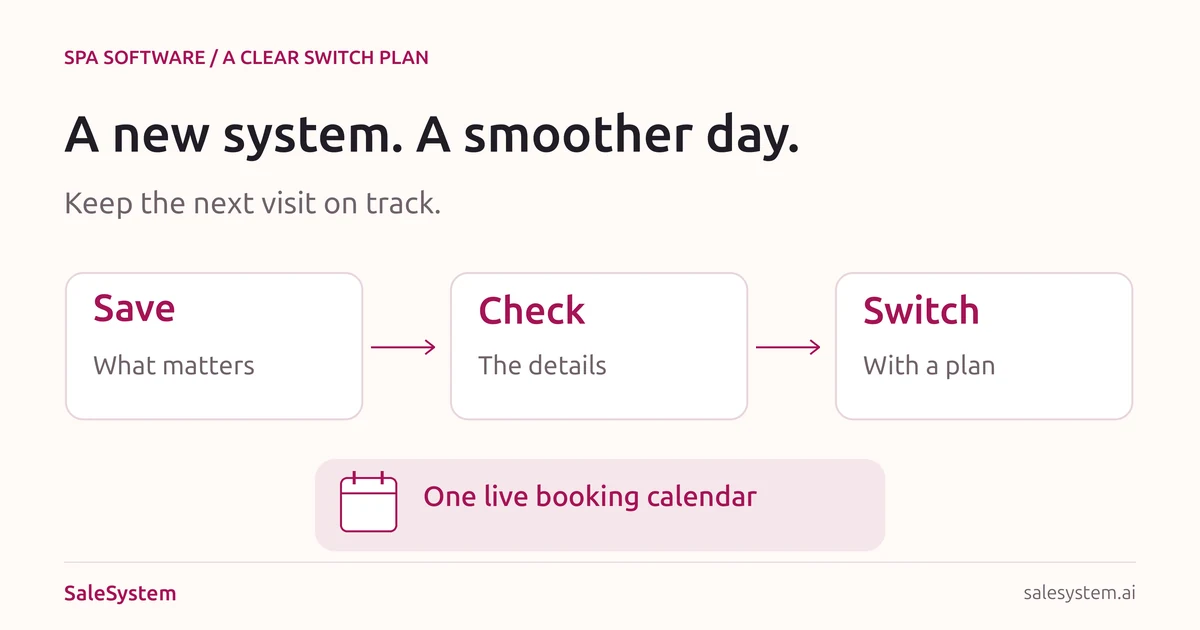
Keep one live booking calendar
Name the system staff should use before the switch and the one they should use after it. Set an exact changeover time. Two calendars that both accept new bookings can leave the team with different versions of the day.
Record changes made after the first export. A client may cancel, book or move a visit while you are setting up. Bring those changes across, then compare the upcoming schedule before opening the new booking path.
Example: a booking changes during setup
You export the schedule on Tuesday. On Wednesday, a client moves a Friday facial to Saturday. If the team loads only Tuesday’s file, the old Friday visit may still appear. Your change list should show the old time, the agreed new time and who checked the final record.
Update booking links on your website, business profile and social pages once the new path is ready. Open each one on a phone. Check saved message templates too; they may still point to the old calendar.
Stop duplicate reminders before they start
List the messages and charges the old system sends on its own. Include booking notices, reminders, follow-up campaigns and recurring payments. For each one, choose which system owns it after the move.
Agree when the old action stops and when the new one starts. Test with your own team before turning on live sending. Check that moved and canceled visits do not keep getting the old reminders.
For memberships, confirm which provider will make the next charge. Moving a member’s name does not mean billing has moved. Keep the written plan close so staff do not turn on a second charge by mistake.
Copy-ready switch plan
Use one short plan the whole desk can find. Keep private exports separate from this handoff.
Switch owner: [Name]
Go-live time: [Date, time and time zone]
Booking calendar before / after: [System names]
Latest export: [Secure file location and time]
Changes since export: [Where they are logged]
Records and balances checked by: [Name]
Messages and billing: [What stops, what starts and when]
Booking links checked by: [Name]
Support contact: [Who helps if something fails]
If not ready: [Who decides to delay and what stays in use]
Choose a staffed time for the switch so someone can answer questions. Train each role on the tasks they need: finding a client, booking, making a change, taking a payment and leaving a clear note.
Before you close the old account
- Compare upcoming appointments and recent changes.
- Check balances and membership billing against your saved records.
- Confirm old reminders and recurring charges are off where needed.
- Open every public booking link and try the new path.
- Make sure each shift can sign in and find its open tasks.
- Keep required records accessible and confirm the old provider’s notice and export terms.
If a key check fails, delay that part of the switch. Keep one clear place for bookings and record any changes while the issue is fixed. Do not ask staff to guess which system is right.
After launch, review the first day’s questions with your team. Carry unfinished requests into your front desk handoff. Fix the repeated problem before adding more tools.
Start with a better daily routine
SaleSystem’s spa software keeps calls, texts, client history and follow-up tasks together. Your team can find the last conversation and help with the next visit without chasing notes.
Marketing includes CRM, conversations and follow-up. Booking and payments are part of the Operations Complete add-on. See current plans and ask sales about your setup and transfer needs before planning the move.
Use the 14-day free trial to try your daily tasks. For a consultation-led practice, our medical spa software buying guide covers the wider comparison.
Make your next spa system easier to work in
Try SaleSystem free for 14 days. Manage your leads, follow up with clients and book appointments in one place.